Gemini in Chrome
The Problem
Users were constantly "breaking their flow" by encountering a complex article or a difficult email in one tab, copying the text, opening a new tab for ChatGPT or Gemini, pasting the context, and then toggling back to apply the result.
We call this the "Toggle Tax." It creates cognitive load, disconnects the tool from the task, and makes AI feel like a destination rather than a utility.
The Core Question:
How might we bring the power of Gemini directly to the user's point of need, making the browser itself intelligent without cluttering the UI?
Research & Insights
We conducted diary studies and observational sessions with power users and students. Three key insights drove our strategy:
Context is King: Users hated having to explain what they were looking at to the AI. They wanted the AI to "see" the active webpage.
Micro-Tasks vs. Macro-Tasks: Users have two distinct AI modes.
Micro: "Rewrite this email," "Summarize this paragraph." (Quick, transient).
Macro: "Plan a trip based on this blog," "Debug this code." (Long, conversational).
Real Estate Anxiety: Chrome users are protective of their viewport. Any permanent AI UI had to be collapsible and non-intrusive.
The solution ecosystem
1. The Context-Aware Floating Window
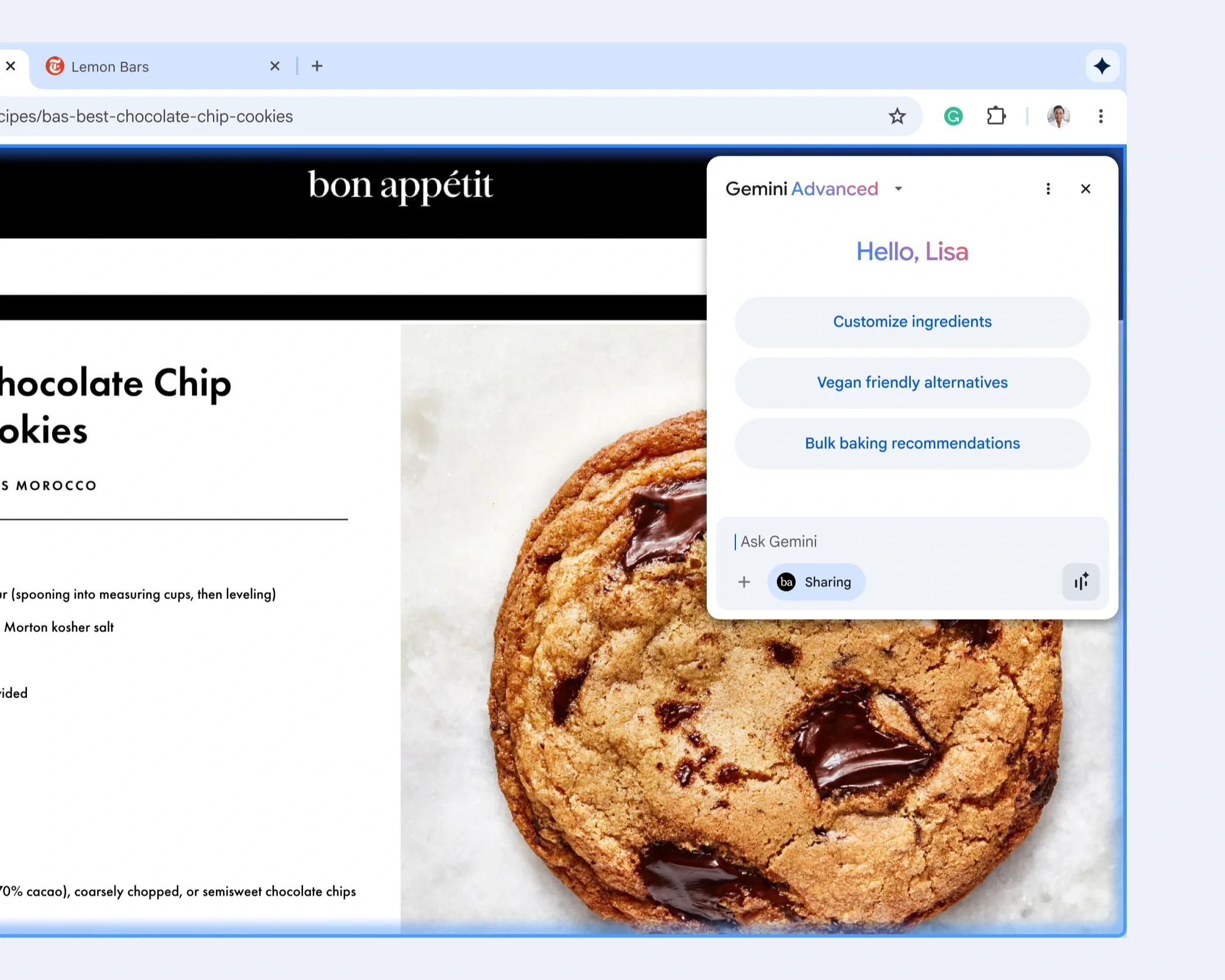
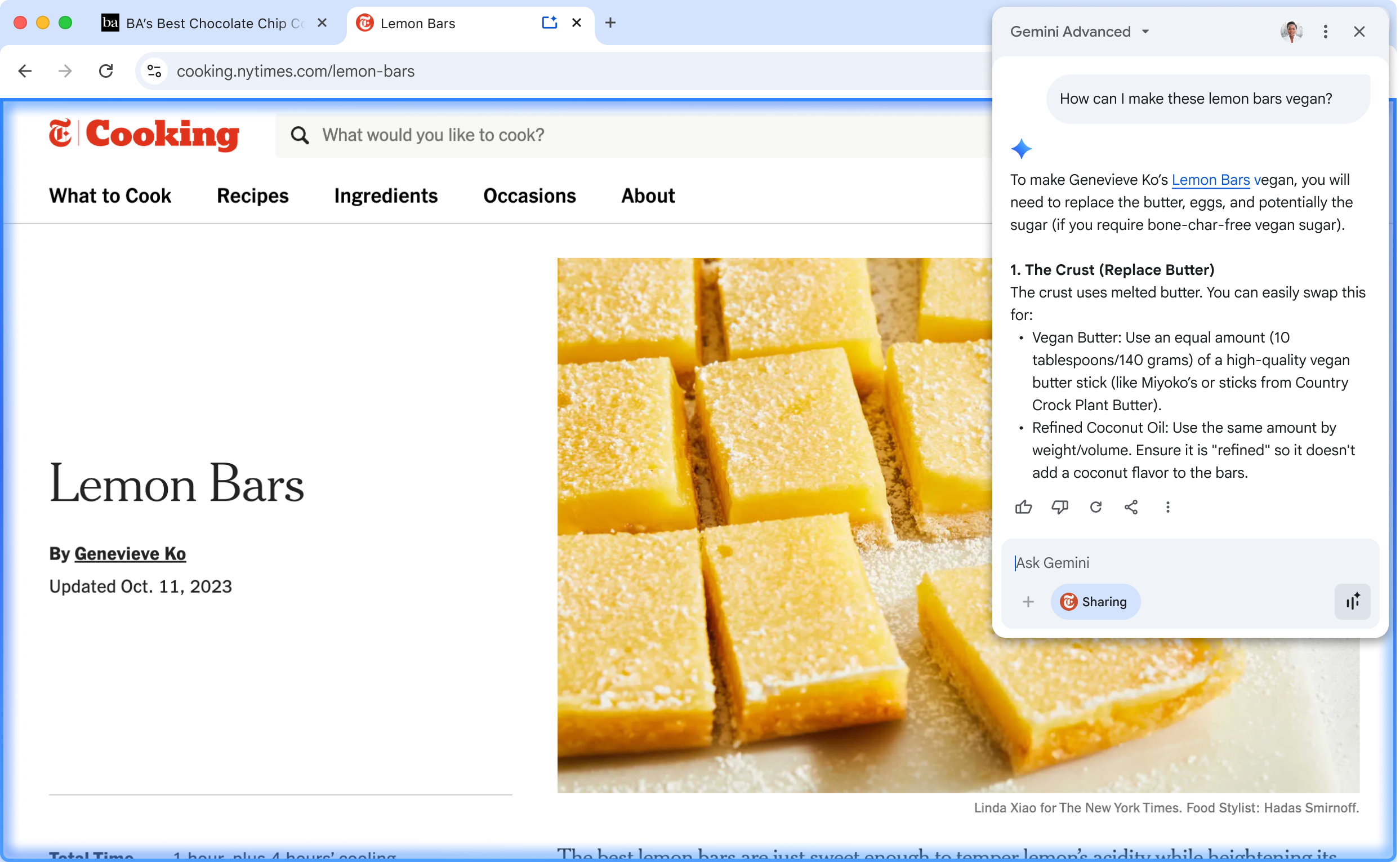
For macro-tasks, we utilized the Chrome framework by integrating a floating window:
The "Read" Permission: The biggest UX challenge was privacy. We couldn't just have Gemini read every page by default. We designed an explicit page sharing state that let users know which tab is shared with Gemini.
Visual Feedback: When Gemini is reading a tab, we added a subtle "sparkle" glow to the page and the tab itself reassuring the user that the connection is active.
Capabilities: Users can ask "What are the key takeaways of this article?" or "Find the pricing in this document," and Gemini parses the DOM of the active tab to answer.
2. The Omnibox Shortcut (@gemini)
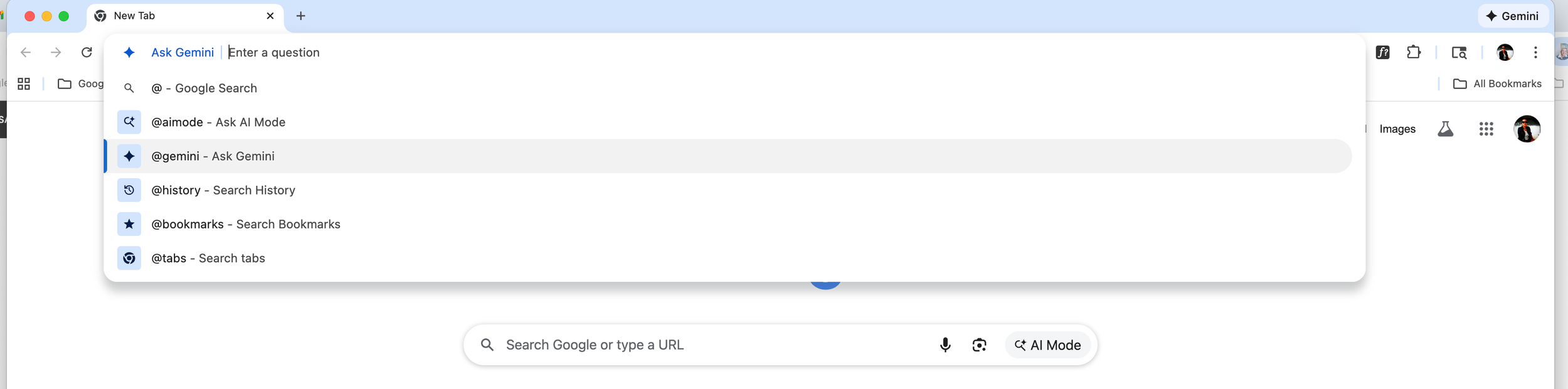
For power users who use the address bar as a command line.
Interaction: Typing @gemini + Tab instantly transforms the address bar into a prompt field. This bridges the gap between navigation (going to a URL) and generation (getting an answer).
Key Design Details
The "Sparkle" Ethos
We had to balance Chrome's utilitarian aesthetic with Gemini's magical brand identity.
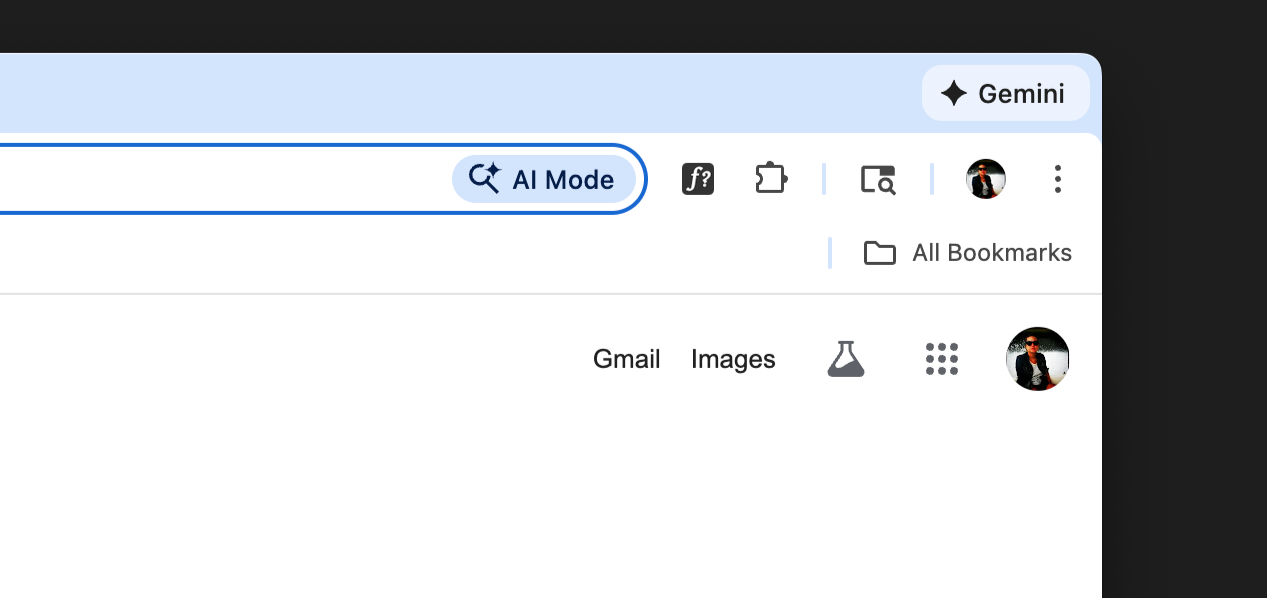
Iconography: We used the Gemini star, but rendered it in Chrome's neutral grey by default, only transitioning to the "Gemini Gradient" (blue/purple) during active processing. This prevents the browser interface from looking like a billboard.
Latency Masking
LLMs can be slow. To prevent users from thinking the browser hung:
Skeleton Loading: We designed a shimmering skeleton state for the Side Panel that mimics the structure of the expected answer (e.g., bullet points vs. paragraphs) to reduce perceived wait time.
Streaming UI: We ensured text streams in token-by-token rather than in chunks, making the AI feel "alive" and responsive.
Results & Impact
Since the global rollout to enterprise and consumer users:
Reduction in Tab Switching: Early telemetry shows a 30% reduction in tab-switching behavior for users engaged in research tasks.
Adoption: "Help me write" has become one of the highest-retention features in Chrome for enterprise users writing emails and Jira tickets.
Privacy Trust: The explicit "Add page to context" permission model received positive feedback in usability testing for making users feel in control of their data.
Reflections
The hardest part of this project wasn't the AI—it was the integration. Fitting a complex conversational interface into a browser that has existed for 15 years required deep collaboration with the engineering team to ensure we didn't negatively impact Chrome's legendary speed and performance.
Next Steps: We are currently exploring "Gemini Live" integration for voice-based browsing assistance and multi-modal input (drag-and-drop images into the browser chrome).